
DillaDev Notes
July 6, 2026 | Gary Dillaman | 4 min read
AT&T Fiber Roblox and Fortnite Connection Fix on Windows 11
Some AT&T Fiber users with BGW320 gateways may find that Roblox or Fortnite will not connect on Windows 11 even while normal websites and streaming still work. Disabling IPv6 is a quick test that can sometimes fix the gaming connection path.
Quick Take
This is a test, not a forever setting.
If disabling IPv6 does not help Roblox or Fortnite connect, turn it back on. This guide is meant to isolate one possible AT&T Fiber and Windows 11 compatibility issue, not replace normal network troubleshooting.
Warning: if this change does not help, re-enable Internet Protocol Version 6 (TCP/IPv6).
Overview
When games break but the rest of the internet looks fine
After switching to AT&T Fiber, some people run into a strange gaming issue: Roblox opens but will not join games, or Fortnite gets stuck connecting to Epic services. At the same time, websites, YouTube, Netflix, and regular downloads may still work.
The example setup for this guide is AT&T Fiber using a BGW320-500 gateway and a Windows 11 PC. That detail matters because BGW320-500 gaming issues can look different from a simple Wi-Fi outage or a bad Ethernet cable.
This is usually not a normal internet is down problem. If you are using only the AT&T-provided router and have not added a second router, NAT is less likely to be the first thing to blame. One practical Roblox connection fix and Fortnite connection fix to test is disabling IPv6 on the Windows 11 PC.
Quick symptoms
This fix is worth testing when the pattern looks like this.
Roblox opens but will not join games.
Fortnite gets stuck connecting or cannot reach Epic services.
Websites, YouTube, Netflix, or downloads still work.
Problem started right after switching to AT&T Fiber.
Before changing anything
Rule out the easy stuff first.
Restart the AT&T gateway.
Restart the PC.
Test another device if possible.
Try a phone hotspot to confirm the game works on another network.
Why IPv6 can affect games
IPv6 can be healthy overall and still create a game-specific problem.
IPv6 is not bad, and modern networks should support it. The point here is narrower: disabling it on one Windows 11 PC can be a useful troubleshooting test.
ISP route behavior
A game service may choose an IPv6 path that behaves differently from the IPv4 path. If that route is flaky, only certain services may fail.
Gateway handling
A gateway such as the BGW320-500 may be working normally for browsing while still exposing an edge case for gaming traffic.
Service behavior
Roblox and Fortnite use login, matchmaking, content delivery, and real-time connections. Those pieces may not fail the same way a website does.
Step-by-step fix
Windows 11 disable IPv6 test.
Follow these steps exactly, then test both games. This changes IPv6 only on this Windows 11 PC, not on the AT&T gateway itself.
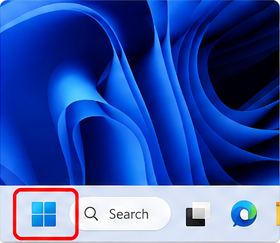
Click the Windows Start button.
Open the Windows 11 Start menu from the taskbar. You do not need to open the Settings app first.
Check your screen
Use the screenshot to confirm you are on the same Windows 11 screen before moving to the next step.
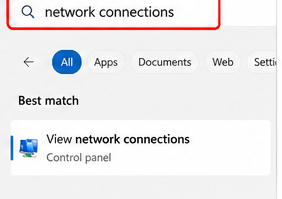
Type "network connections".
Use the Start menu search box and type network connections. Windows should begin showing network-related results.
Check your screen
Use the screenshot to confirm you are on the same Windows 11 screen before moving to the next step.
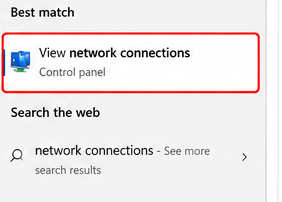
Click "View network connections".
Choose the Control Panel result named View network connections. This opens the classic adapter list.
Check your screen
Use the screenshot to confirm you are on the same Windows 11 screen before moving to the next step.
Find the active adapter, usually Ethernet or Wi-Fi.
Look for the adapter that says Connected. On a wired gaming PC, this is usually Ethernet. On wireless, it is usually Wi-Fi.
Check your screen
Use the screenshot to confirm you are on the same Windows 11 screen before moving to the next step.
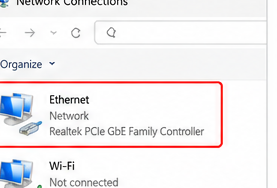
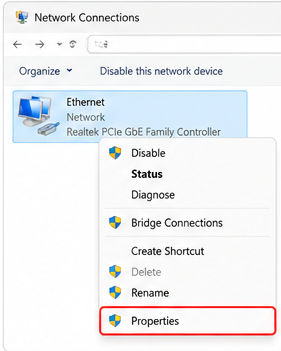
Right-click the adapter and choose Properties.
Right-click only the active adapter. In the menu that appears, choose Properties.
Check your screen
Use the screenshot to confirm you are on the same Windows 11 screen before moving to the next step.
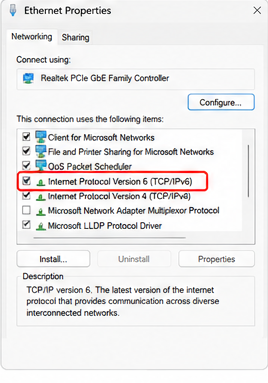
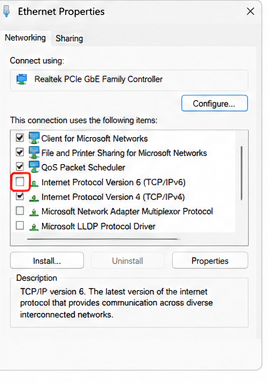
Find "Internet Protocol Version 6 (TCP/IPv6)".
In the adapter properties window, look through the list until you find Internet Protocol Version 6 (TCP/IPv6).
Check your screen
Use the screenshot to confirm you are on the same Windows 11 screen before moving to the next step.
Uncheck the box next to IPv6.
Clear the checkbox beside Internet Protocol Version 6 (TCP/IPv6). Leave the IPv4 checkbox enabled.
Check your screen
Use the screenshot to confirm you are on the same Windows 11 screen before moving to the next step.
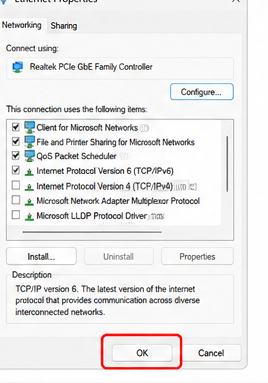
Click OK.
Click OK to save the adapter change. Windows may pause for a moment while the network adapter updates.
Check your screen
Use the screenshot to confirm you are on the same Windows 11 screen before moving to the next step.
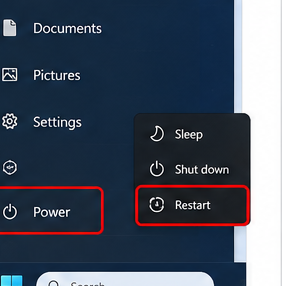
Restart the computer.
Restart Windows 11 so the networking stack starts fresh with the new adapter setting.
Check your screen
Use the screenshot to confirm you are on the same Windows 11 screen before moving to the next step.
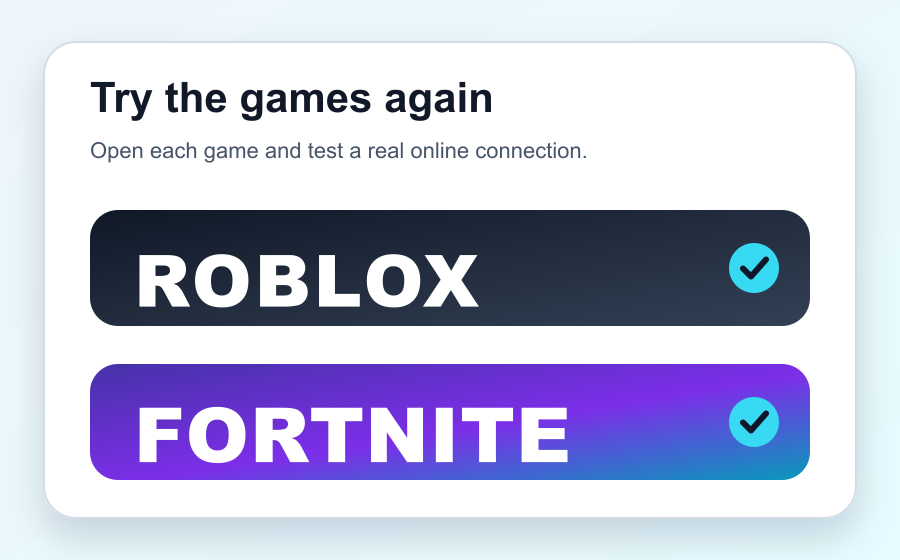
Try Roblox and Fortnite again.
After the PC restarts, open Roblox and Fortnite and test a real online connection. If nothing changes, turn IPv6 back on.
Check your screen
Use the screenshot to confirm you are on the same Windows 11 screen before moving to the next step.
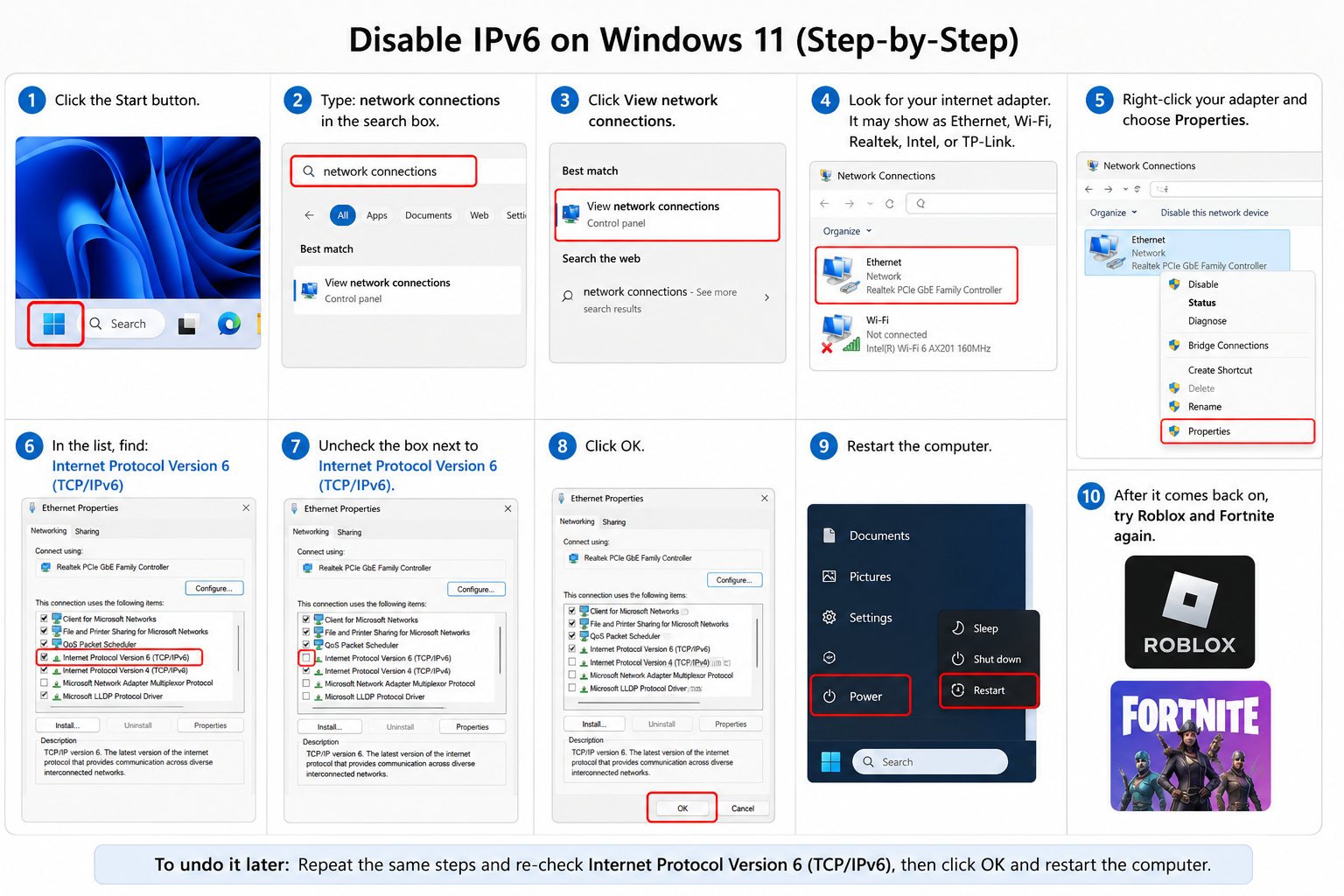
Shareable Graphic
All Windows 11 IPv6 steps in one image.
Use this single graphic if you want to save the whole walkthrough or share it with someone else troubleshooting Roblox or Fortnite on AT&T Fiber.
How to undo this change
Turn IPv6 back on the same way.
Repeat the same path: Start, search for network connections, open View network connections, right-click the active adapter, and open Properties.
Find Internet Protocol Version 6 (TCP/IPv6), re-check the box, click OK, and restart the computer. If disabling IPv6 did not help Roblox or Fortnite, this undo step is recommended.
If this does not fix it
Use the result to keep troubleshooting.
Re-enable IPv6.
Check the AT&T outage page for a local service issue.
Test Cloudflare DNS 1.1.1.1 and 1.0.0.1.
Check Windows Firewall and any third-party security software.
Contact AT&T and mention that gaming services fail while regular browsing still works.
FAQ
Common questions about this AT&T Fiber gaming fix.
Is this a NAT problem?
Usually, it is less likely to be a normal NAT problem when you are using only the AT&T-provided BGW320-500 gateway and no second router. NAT can still matter in more complex networks, but this symptom pattern often points somewhere else first.
Is disabling IPv6 safe?
For a short troubleshooting test, disabling IPv6 on one Windows 11 PC is usually low risk. Some modern services prefer IPv6, so it should not be treated as a blanket recommendation for every device.
Should I leave IPv6 off forever?
No. Treat this as a test. If Roblox or Fortnite starts working, you have useful evidence. You can keep using that setting temporarily, but it is worth checking later for gateway firmware updates, ISP routing changes, or a more complete fix.
Does this apply to BGW320-500?
Yes, this guide is based on the example setup of AT&T Fiber with a BGW320-500 gateway and a Windows 11 PC. The same test may help other BGW320 setups, but exact results can vary.
Why do websites work but games fail?
Web browsing can fall back, retry, or use different routes than live game services. A game may depend on login, matchmaking, UDP traffic, CDN endpoints, or service-specific IPv6 behavior, so a regular website test does not prove every game connection path is healthy.